Showing posts with label Wireless. Show all posts
Showing posts with label Wireless. Show all posts
Friday, November 9, 2018

Compare 2.4Ghz vs 5Ghz
With 802.11n, 40Mhz width could be used in 2.4Ghz, but it will be shrink to 20Mhz bandwidth if there is co-channel interference. With 802.11N and 802.11AC, up to 160Mhz channel width could be used in 5 Ghz.
However, the attenuation rate in 5Ghz is higher than the one in 2.4 Ghz because of high level of attenuation in higher frequency by obstacle or absorptive attenuation by air or water.So, the coverage by ap running in 2.4Ghz is wider than the coverage of AP running in 5Ghz, and 2.4Ghz is appropriate for the place where require wider range of coverage with less number of user and APs.
Tuesday, June 13, 2017
Single Sign On - Identifi Radius Accounting interim message
Radius Server can be configured on Identifi controller and can be configured to send accounting information at the time of Authentication/Authorization. There is additional function named Interim Accounting Interval which can be used to send accounting message periodically every configured period. In below configuration, controller configured to send interim accounting message every one minute.
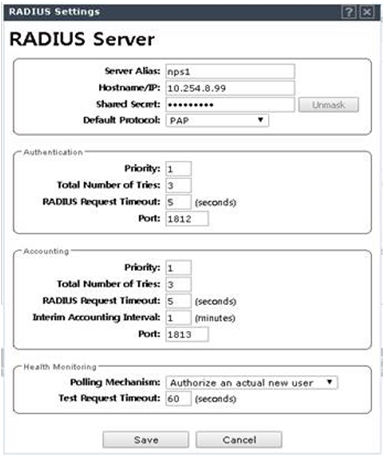
As a result, controller send Radius Accounting message every one minute. ( Verified by packet capture.)

RADIUS SSO Requirements ( From Watchguard )
You can use RADIUS Single Sign-On with wireless access point or other RADIUS clients that include the required information in the RADIUS accounting messages. For RADIUS SSO to operate, the RADIUS accounting Start, Stop, and Interim-Update accounting messages sent by the RADIUS client must include these attributes:
- User-Name — The name of the authenticated user
- Framed-IP-Address — The client IP address of the authenticated user
WatchGuard AP devices that use the latest version of AP firmware meet these requirements. Other wireless access points that support these requirements should also operate correctly for RADIUS SSO.
Some access points do not assign the client IP address until after the user authenticates. For these access points, the Start accounting message might not include the Framed-IP-Address attribute. After the user authenticates, the access point immediately sends an Interim-Update accounting message that includes the Framed-IP-Address attribute. Even though the Start message does not include the Framed-IP-Address attribute, RADIUS SSO functions correctly.
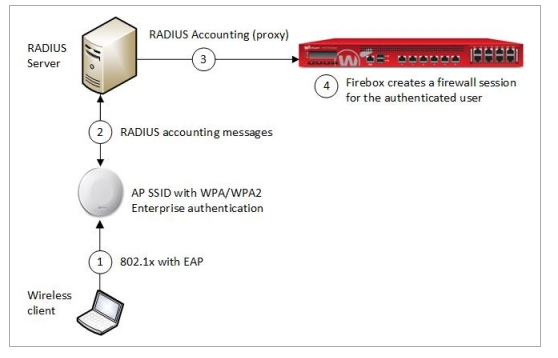
How Radius SSO works. ( From WatchGuard )
When a user connects and authenticates to a RADIUS client, such as a wireless access point, the RADIUS client sends accounting messages to the RADIUS server. The RADIUS server sends these accounting messages to the Firebox and the Firebox creates a firewall session for the user at the specified client IP address. When the user disconnects, the RADIUS server sends an accounting message to the Firebox and the Firebox removes the user session
Thursday, May 11, 2017
Identifi - Wireless trouble shooting
IP Tools
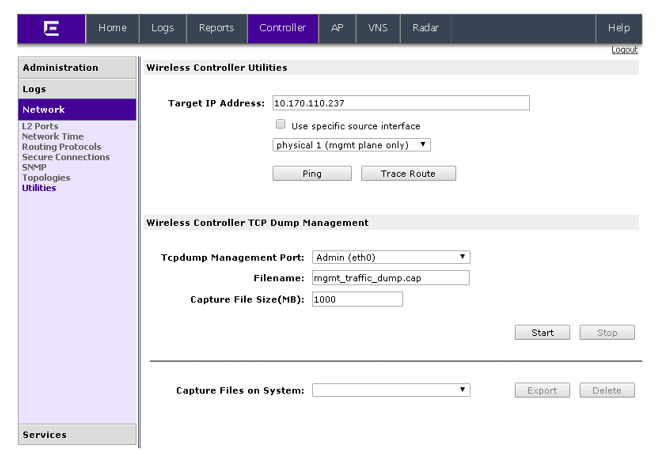
The Ping and Trace Route tools are available on the Wireless Controller Utilities section. This allows you to test the connection to a target IP address from the controller.
TCPdump management
The TCPdump management utility allows you to capture exception traffic that is sent to the management plane. Exception traffic is defined as traffic that is sent to the management plane from the data/control plane for special handing (i.e. DHCP, OSPF and TFTP traffic). The TCP dump utility allows you to determine if packets are being dropped in the data/control plane.
The captured traffic is stored in a binary tcpdump-format file on local hard-drive. The captured file can be exported to a local machine for packet analysis (Wireshark, etc.).
There are some limitations. Only one traffic capture is allowed on the system at a single time and the controller does not permit the capture of any data plane traffic. Lastly, WDS, Mesh and Bridge-at-AP captures are not supported.

Exporting TCPdump
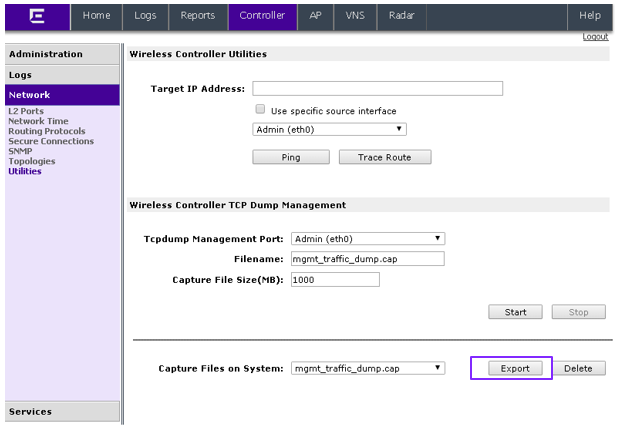
After a capture has completed you have the ability to Export it to a file on your desktop that can be opened by a traffic analyzer.
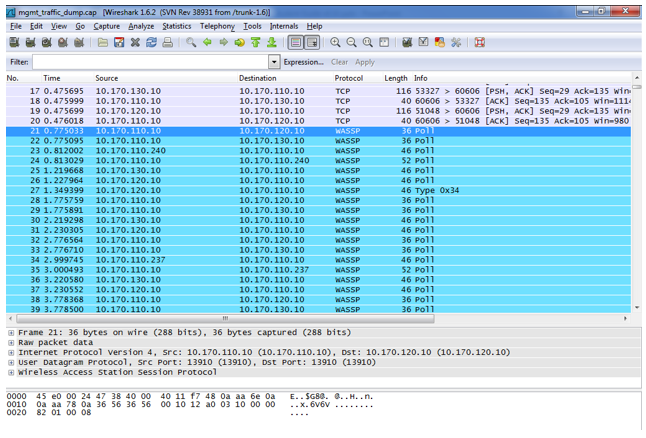
TCPdump Capture: Wireshark Display
After captured file exported to the desktop, it can be displayed by wireshark.
Wireless controller shell commands
[ how to enter shell ]
To enter to the Wireless Controller Shell:
EWCGroup1.extremenetworks.com# shell
Password:
root@EWCGroup1.extremenetworks.com:~#
[ TCPdump on the shell ]
root@EWCGroup1.extremenetworks.com:~# tcpdump -i csi1 port 1812 -vv
[ Checking the log ]
-“Tail –f /var/log/messages” will print event as they occur (Linux)
-Tail –f /var/dhcp/dhcpd.leases
-tail -f /var/log/messages | grep XX:XX:XX:XX:XX:XX (device's mac address)
-cat /var/log/messages | grep XX:XX:XX:XX:XX:XX (device's mac address)
-tail -f /var/log/messages | grep AP-serial-number
-cat /var/log/messages | grep username
root@EWCGroup1.extremenetworks.com:/var/log# tail -f messages | grep zee_employee1
Nov 11 13:43:43 EWCGroup1.extremenetworks.com events: Radius Client Radius Response: Accepted: UserID:zee_employee1, Client MAC:[E8:FC:AF:86:79:21] 3
root@EWCGroup1.extremenetworks.com:/var/log# tail -f messages | grep Radius
Nov 11 13:49:00 EWCGroup1.extremenetworks.com events: Radius Client Radius Response: Accepted: UserID:zee_employee1, Client MAC:[E8:FC:AF:86:79:21] 3
Nov 11 13:49:01 EWCGroup1.extremenetworks.com events: Radius Accounting New session is created for client [E8:FC:AF:86:79:21]
(After deleting End-System from NAC):
Nov 11 13:47:12 EWCGroup1.extremenetworks.com events: Radius Accounting Client [E8:FC:AF:86:79:21] on VNS [ZEE_IT] is deregistered with termination code: 106 [Authorization Server Request]
EWCGroup1.extremenetworks.com# show log
Display logs and reports.
Usage: show log <log_name> [[first | last] <number>]
Log Names:
ospf-neighbor
ospf-linkstate
dhcp
ntp
ac (critical|major|minor|info|all)
ap <ap_serial> (critical|major|minor|info|all)
mu_access.log
upgradeLog.txt
auditRecords.log
upgrade.log
configChanges.log
login.log
station
“show log <log_name> [[first | last] <number>]
EWCGroup1.extremenetworks.com# show log auditRecords.log
11/09/15 15:34:34 admin VNS Cfg Common Changed Static Egress Untagged VLANs for Role 'ZEE_IT'
11/09/15 15:13:47 admin APs Radio 2 Channel changed from [13-(2472,2452 MHz)] to [13: (2472)] for AP serial 14385852085E0000, radio 2 802.11g/n
EWCGroup1.extremenetworks.com# show log ac (critical | major | minor | info | all)
EWCGroup1.extremenetworks.com# show ap
serial 12441637905C0000 18thFloor_AP4 AP3705i
serial 14385852085E0000 18thFloor_AP01 AP3825i
EWCGroup1.extremenetworks.com# show log ap 14385852085E0000 all
Msg: 11/11/15 10:14:40, Info, 11/10/15 23:14:40: SSH exit auth (admin): Idle timeout
Msg: 11/11/15 10:11:28, Info, 11/10/15 23:11:27: SSH connection from 10.254.8.123:57017
Msg: 11/11/15 10:05:21, Info, 11/10/15 23:05:20: SSH exit auth (admin): Idle timeout
Msg: 11/11/15 10:02:07, Info, 11/10/15 23:02:06: SSH connection from 10.254.8.123:56934
Msg: 11/11/15 09:58:24, Critical, 11/10/15 22:57:28: AccessPoint Rebooting due to: Received Standy Request from Wireless Controller
EWCGroup1.extremenetworks.com# show log auditRecords.log
11/09/15 15:34:34 admin VNS Cfg Common Changed Static Egress Untagged VLANs for Role 'ZEE_IT'
11/09/15 15:13:47 admin APs Radio 2 Channel changed from [13-(2472,2452 MHz)] to [13: (2472)] for AP serial 14385852085E0000, radio 2 802.11g/n
EWCGroup1.extremenetworks.com# show log ac (critical | major | minor | info | all)
EWCGroup1.extremenetworks.com# show ap
serial 12441637905C0000 18thFloor_AP4 AP3705i
serial 14385852085E0000 18thFloor_AP01 AP3825i
EWCGroup1.extremenetworks.com# show log ap 14385852085E0000 all
Msg: 11/11/15 10:14:40, Info, 11/10/15 23:14:40: SSH exit auth (admin): Idle timeout
Msg: 11/11/15 10:11:28, Info, 11/10/15 23:11:27: SSH connection from 10.254.8.123:57017
Msg: 11/11/15 10:05:21, Info, 11/10/15 23:05:20: SSH exit auth (admin): Idle timeout
Msg: 11/11/15 10:02:07, Info, 11/10/15 23:02:06: SSH connection from 10.254.8.123:56934
Msg: 11/11/15 09:58:24, Critical, 11/10/15 22:57:28: AccessPoint Rebooting due to: Received Standy Request from Wireless Controller
EWCGroup1.extremenetworks.com# show log station
Msg: 11/11/15 13:40:18 EventType[State Change] MAC[E8:FC:AF:86:79:21] BSSID[20:B3:99:F6:1B:40] Details: VNS[ZEE_IT] Auth[valid]
Msg: 11/11/15 13:40:17 EventType[Area Change] MAC[E8:FC:AF:86:79:21] Details: Area[Unknown]
Msg: 11/11/15 13:40:17 EventType[Registration] MAC[E8:FC:AF:86:79:21] AP[18thFloor_AP01] BSSID[20:B3:99:F6:1B:40] SSID[ZEE] Details: Radio[1]
# pwd
/tmp/log
# tail -f ap.log
Nov 11 04:59:03 kernel: ieee80211_node.c:449-gclist_timeout()-n_recovered=0
Nov 11 04:59:31 kernel: chantry_ext_stats_getip 202: error line 121
Nov 11 05:00:35 kernel: chantry_ext_stats_getip 202: error line 121
Nov 11 05:01:39 kernel: chantry_ext_stats_getip 202: error line 121
Nov 11 05:02:40 kernel: chantry_ext_stats_getip 202: error line 121
[ Check the process id and restart process ]
EWC.extremenetworks.com# show system_state process
PID Process Name State % CPU % Mem
1807 Location Based Service S 0 0.2
1781 VN Manager S 0 0.7
1635 NSM Server S 0 0.4
1247 Config Manager S 0 1.8
3314 CLI S 0 1.3
1750 OSPF Server S 0 0.4
1670 PortInfo Manager S 0 0.2
1607 Remote INS S 0 0.4
27710 DHCP S 0 0.0
EWC.extremenetworks.com# restart 27710
DHCP process being restarted.
[ Gathering MU info ]
# cget muInfo wifi0
Total MUs: 1
MU E8:FC:AF:86:79:21, vap ath0
IP 10.32.100.253 (0xa2064fd)
policyName ZEE_IT topology T, topology_id 0
rcUlCIR 0, rcUlCBS 0, rcDlCIR 0, rcDlCBS 0
rcUlDP 0, rcUlDB 0, rcDlDP 0, rcDlDB 0
portClosed 0 li_flags 21 ni_attr_flags 0 AcAssocRx 1
# cget muInfo wifi1
Total MUs: 0
Wireless Mesh
Mesh Overview
Dynamic Mesh & Static Mesh (Wireless Distribution System (WDS)) extends traditional networks without installing cable or fiber
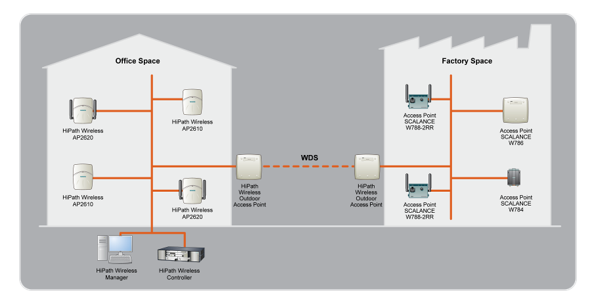
Dynamic Mesh, a proprietary solution aligned with 802.11s Hybrid Wireless Mesh Protocol (HWMP) , non-register, proactive mode but is not fully 802.11s compliant, is extension of the WDS capabilities.
Static Mesh or Wireless Distribution System (WDS) is part of the IEEE 802.11 specification that allows APs to use RF to provide both network access and data backhaul, making it possible to extend the traditional network to less traditional locations without installing additional cable or fiber.
The AP supports links on either the 5 GHz or 2.5 GHz frequency bands. Therefore they can be leveraged, yielding better overall performance and creating a far more scalable network. The Mesh network is secure as it automatically negotiates pair-wise master keys to encrypt data using AES and to secure links between each node so that data is never transmitted in the clear. Lastly, it is completely integrated into Wireless framework (VNS, Availability, etc.)
Note: Dynamic Mesh is supported on all AP3xxx models only, excluding the AP3605. WDS or Static Mesh is supported on all APs with the exception of the AP2605/AP3605.
AP roles in Mesh/WDS topology
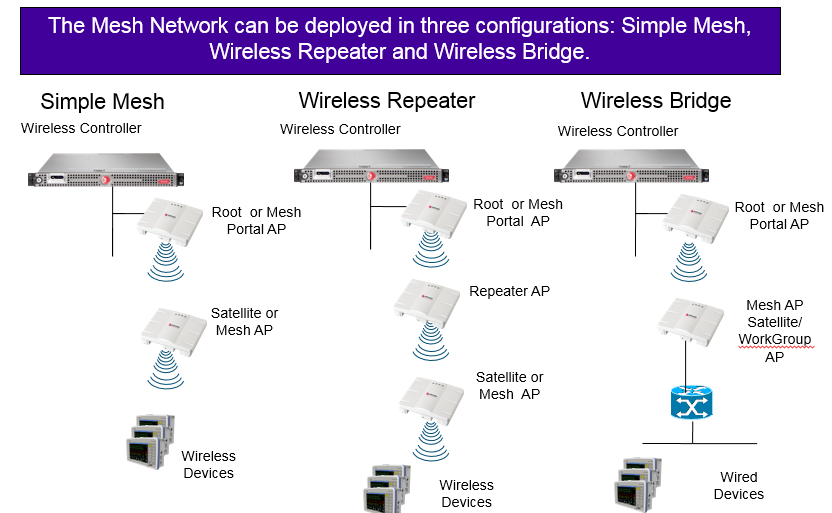
A Simple Mesh configuration is used when a Wireless AP is installed in a remote location and can’t be wired to the distribution system (DS). A Root or Mesh Portal Wireless AP is connected to the distribution system via an Ethernet link. This intermediate Wireless AP forwards and receives the user traffic from the remote Wireless AP, also called a Satellite or Mesh AP, over a radio link.
If there is a Wireless AP between the Root/Mesh Portal and Satellite/Mesh AP, it is used to relay the user traffic; this AP acting as a Repeater. A Repeater AP relays the user traffic between the Root/Mesh Portal and the destination Mesh AP/ Satellite AP is acting as both a child and a parent, thus increasing the WLAN range. When configuring WDS in a Wireless Repeater configuration, you should limit the number of repeaters to 3 for optimum performance.
In the Wireless Bridge configuration, the traffic between wireless APs that are connected to two separate wired LAN segments is bridged via a Mesh link; this is also referred to Workgroup Bridge. To avoid loops, make sure that it the remote wired LAN is a truly isolated segment with no other connections to the wired network since the Mesh solution does not offer protection from loops.
Mesh AP is connected only to one parent/Root AP at a time, a Repeater and Satellite AP may connect an isolated Ethernet segment to the wired network, limiting the number of hops in the tree reduces the latency and provides better performance because packets are duplicated on each hop.
Mesh Tree
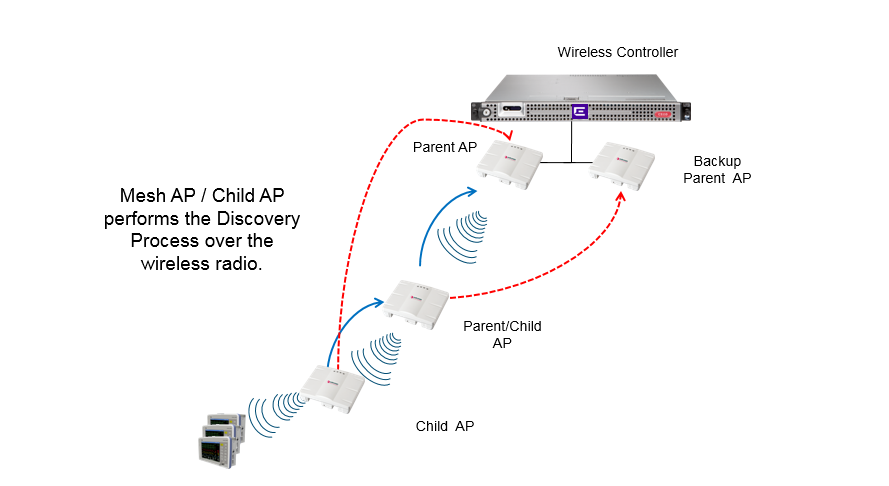
The Wireless APs in a Mesh Network configuration form a tree-like structure. The tree builds in a top down manner with the Root / Mesh Portal Wireless AP being the tree root, the Mesh AP / Satellite Wireless or Repeaters being the tree leaves. The Wireless AP that provides the Mesh service to the other Wireless APs in the downstream direction is called a parent. The Wireless APs that establish a link with the Wireless AP in the upstream direction for Mesh service are children. The Controller can be set up with either a single WDS/Mesh VNS or multiple WDS/Mesh VNSs. If a VNS shares a single WDS/Mesh, it uses the same SSID and a single pre-shared key for the links. The tree can have multiple roots. In a multi-Mesh environment two independent WDS/MESH trees will be created and each tree will operate on separate SSIDs and use separate pre-shared keys.
The Parent AP enables WDS IE in the beacon once it is connected to the Controller and announces its AP Name using a proprietary IE (SSID is not suppressed). The child AP scans for the preferred parent and/or backup parent on the radio defined in the WLAN Service. When found it will connect to the parent AP using a proprietary protocol and establish a WDS/Mesh link.
When an AP starts the discovery process in a Mesh environment the AP will obtain its IP address using a DHCP Request that is broadcasted through the link until it reaches the controller. The DHCP response will be transmitted down through the Mesh link until it reaches the AP. The AP will register to the Controller over the Mesh link and then the Controller manages the Mesh AP as any other AP. The Repeater AP tunnels traffic through the Mesh bridge, not through its own tunnel to the Controller.
Multiple/Backup Bridge Environment

Once the Mesh/WDS link has been established between the parent and client, the link is monitored.
In a WDS environment, heartbeat messages are exchanged in the form of Poll_Req messages are sent from the client AP to the parent AP. The parent is responsible for responding to the polls with a Poll_Resp. The parent AP will disconnect the WDS link if no traffic or no Poll_Requests are received for 20 seconds. Once the link is broken between the parent and child the child will attempt to automatically discover its backup parent by performing a full scan of the (2.4 or 5GHz) band. In the Static Mesh configuration or WDS, if a backup parent is not defined, the child AP will be left stranded.
Mesh AP uses the Beacons from the parent to detect its presence. Mesh AP monitors other potential parents while connected to the current parent. Mesh AP changes to another parent either because parent is lost (Consecutive Beacon loss) or there is a parent with significantly better link quality (self-healing). In the both cases, the Mesh AP transfers to the new parent without a need for a full scan. The Mesh AP does a full scan if there is no other available parent or on the startup.
During the transition from parent to backup parent service to clients is lost.
Mesh can co-exist with WDS WLAN (used with statically defined).
Mesh Network and RF
Dynamic Frequency Selection (DFS) should be avoided when using Radio A
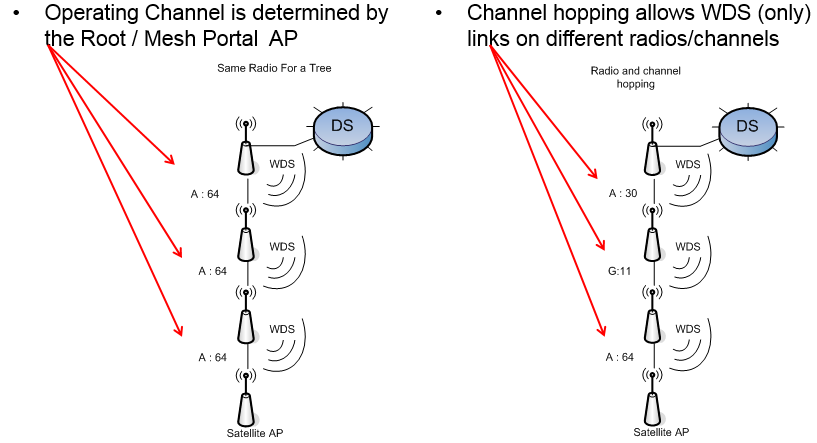
The Mesh tree operates on the channel determined by the Root/Mesh Portal AP radio. Therefore, the Mesh/Satellite AP channel is determined by parent radio. A Wireless AP may connect to its parent Wireless AP and children Wireless APs on the same radio or on different radios. Similarly, a Wireless AP can have two children operating on two different radios.
Dynamic Frequency Selection (DFS) should be avoided when using radio A (region and country dependent) in a Mesh environment. When DFS is enabled prior to establishing a Mesh link and transmitting over any channel, the child AP will perform a 60 second scan to check for the presence of radar signals on the channel. During operation, the WDS AP continues to monitor for radar and if radar is detected on an AP, the AP dissociates clients and signals radar to its parent and child APs.
Changes to the radio channel or power on the child AP may cause the AP to become inaccessible. During deployment, if the child AP rejects changes to a channel or power for the radio used for the link connection to the parent AP, an alarm will be generated.
To reduce interference, radio hopping may be used where neighboring links are on different radio; however, channel planning is difficult. WDS (only) backhaul can co-exist with client VNSs on same radio. However, the best performance is achieved when client VNSs are on a different radio than the WDS backhaul. Radio A is sometimes the best choice for WDS backhaul because most clients operate on b/g.
Subscribe to:
Posts (Atom)